
Redesigning the Stock Screener: Crafting an Intuitive Stock Discovery Experience for Emerging Investors
About Project
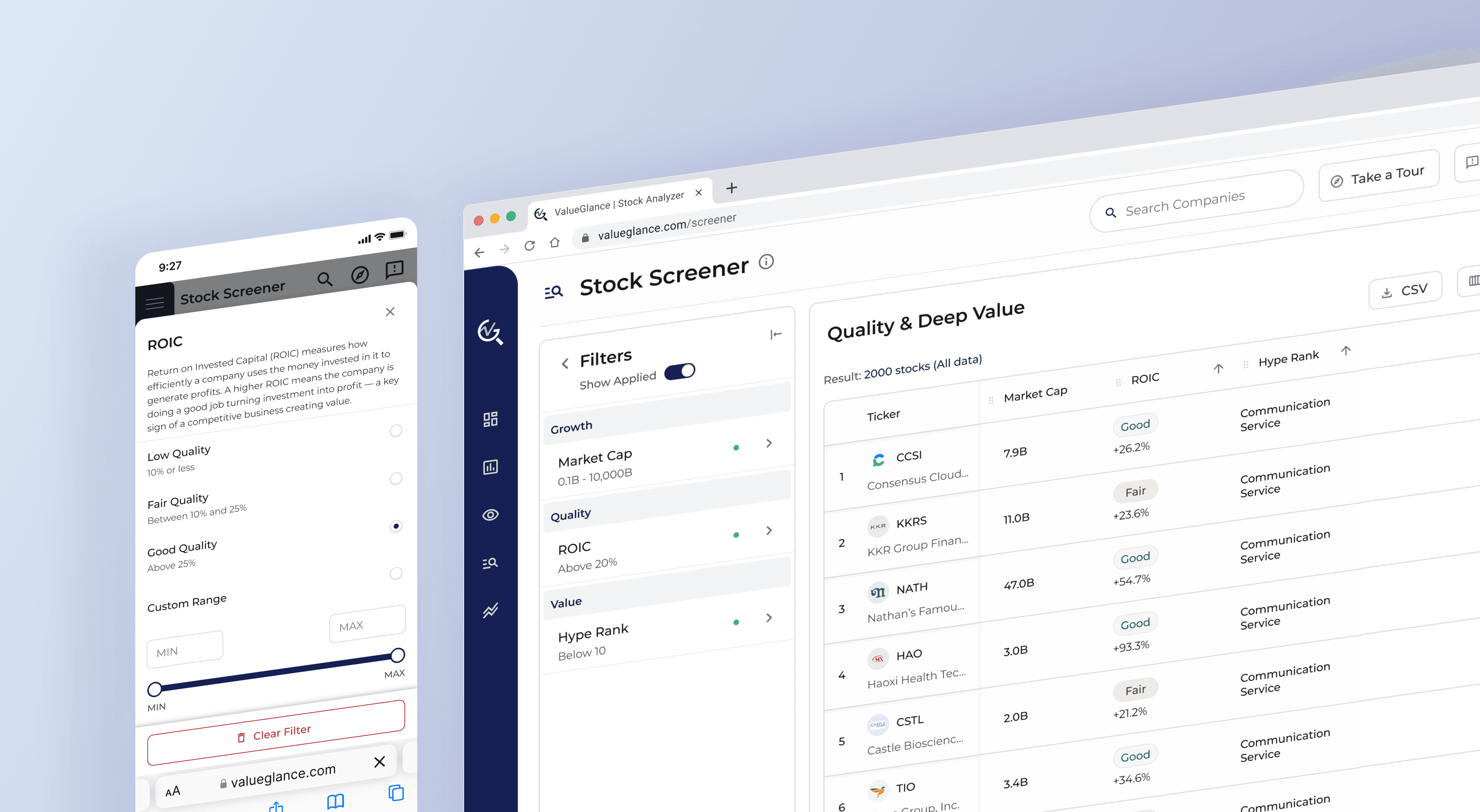
I redesigned the Screener feature for a FinTech SaaS investment platform, driving the process from usability interviews through design iterations to design handoff.
My Role
Conduct survey & usability interview
Prioritize design decisions using Impact-Feasibility Matrix
Deliver wireframes & high-fidelity prototypes
Document screen flows and component libraries
Achievements
Reduced stock discovery steps by 25%.
TEAM
1 CEO / Back-end Developer
1 Front-end Developer
1 Financial Analyst
1 Product Designer (Me)
COMPANY
ValueGlance
DURATION
2 months
TOOLS
Figma, FigJam (Whiteboard tool)
Research Recap
Screener has strong potential to meet users' investing needs, but its usability challenges are preventing users from fully benefiting from it.
From survey and usability testing results, we found a huge opportunity to improve the Screener by reducing cognitive load and clarifying key interactions, aiming to unlock the full value of the feature.
Check out full research case study
90%
of users said 'Find potential stocks to invest in.' is the main goal of using an investing tool, showing that Screener could be a valuable feature.
3out of 6
active users feel lost when choosing and setting up filters during the free exploration Screener task.
57.2%
of users feel difficult to use the Screener feature.
Over 50%
of users use the Screener feature infrequently.
Usability Study Insights
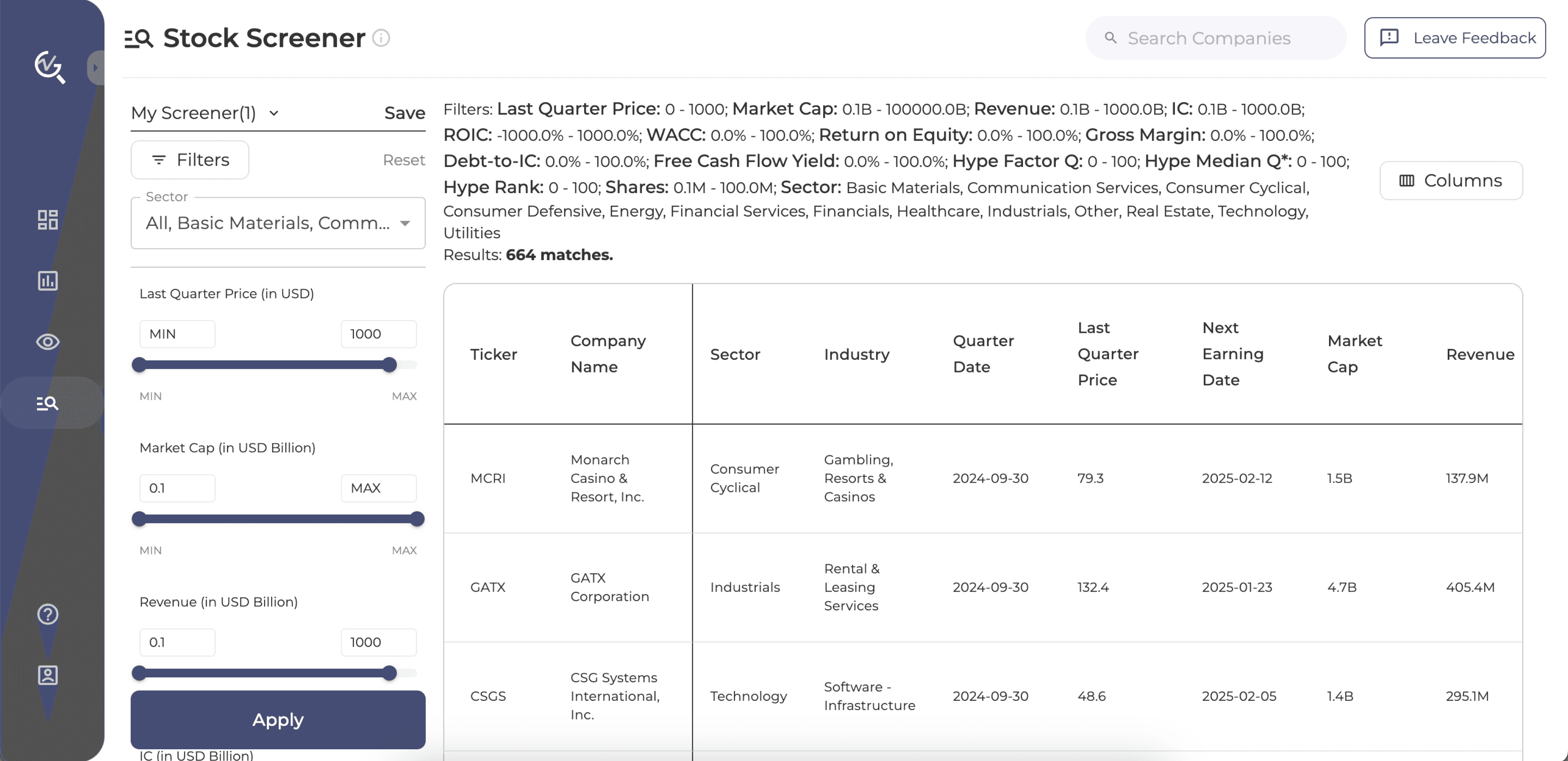
During usability testing, we discovered that while screening stocks, users struggled to choose the right filters, set meaningful ranges, and understand how each metric aligned with their investment goals. Once they received the results, many found it difficult to evaluate and compare stocks effectively.

Lack of mental models for investment metrics
Users struggle to select the right screener metrics because they don’t understand how each one relates to their investment goals.
I don't know what the relation of a company and their revenue and market cap really have to do with whether they are

Users don't know what number to set up for the ranges.
I really don't know what the average market caps are, what is considered a small company. I don't know what the range for that is.


Interaction friction in filter controls
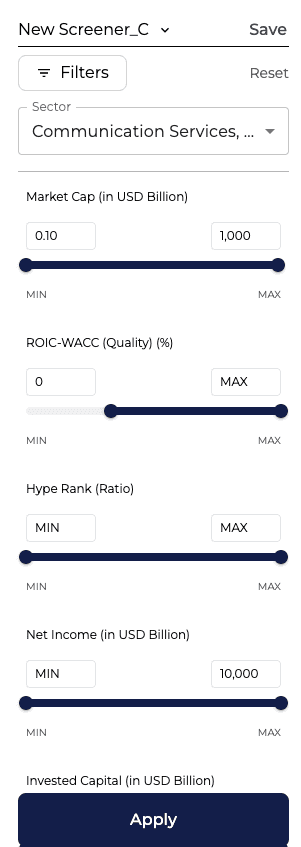
Managing filters requires multiple clicks, creating unnecessary friction.
I don't know what the relation of a company and their revenue and market cap really have to do with whether they are

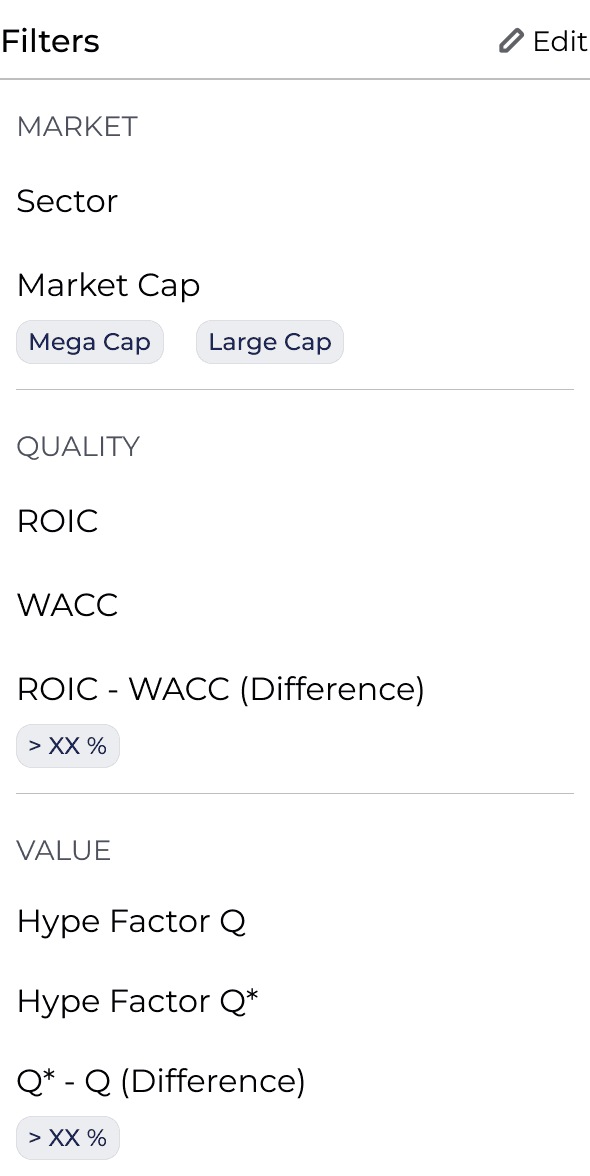
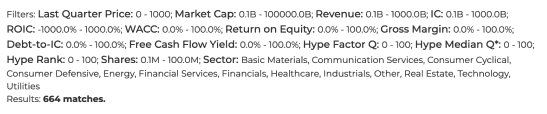
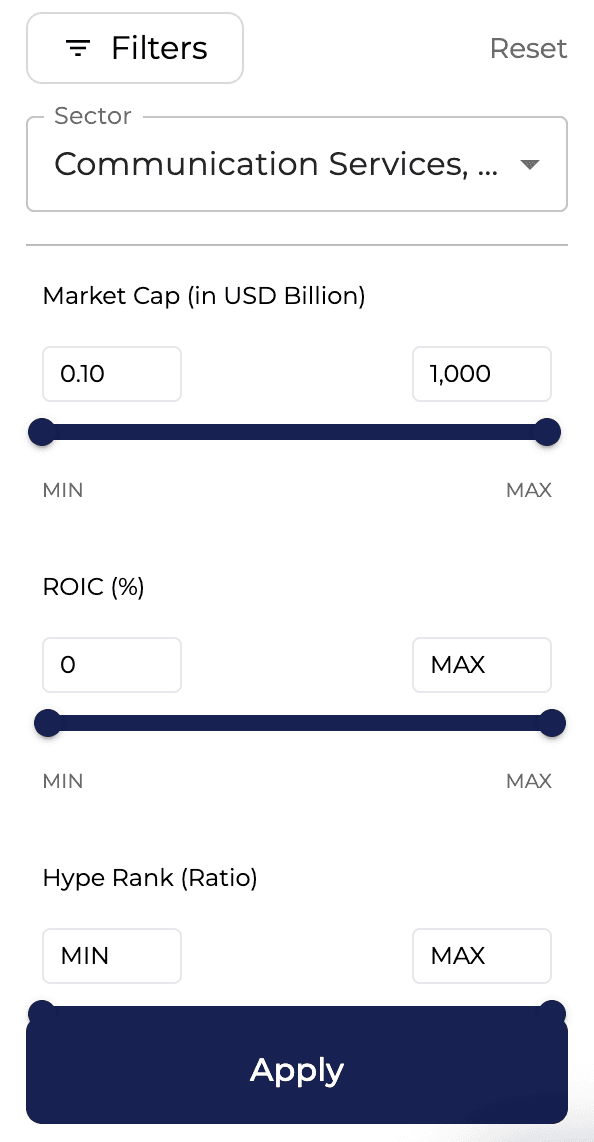
Applied filters are shown as plain text, making users difficult to scan and understand.
I really don't know what the average market caps are, what is considered a small company. I don't know what the range for that is.


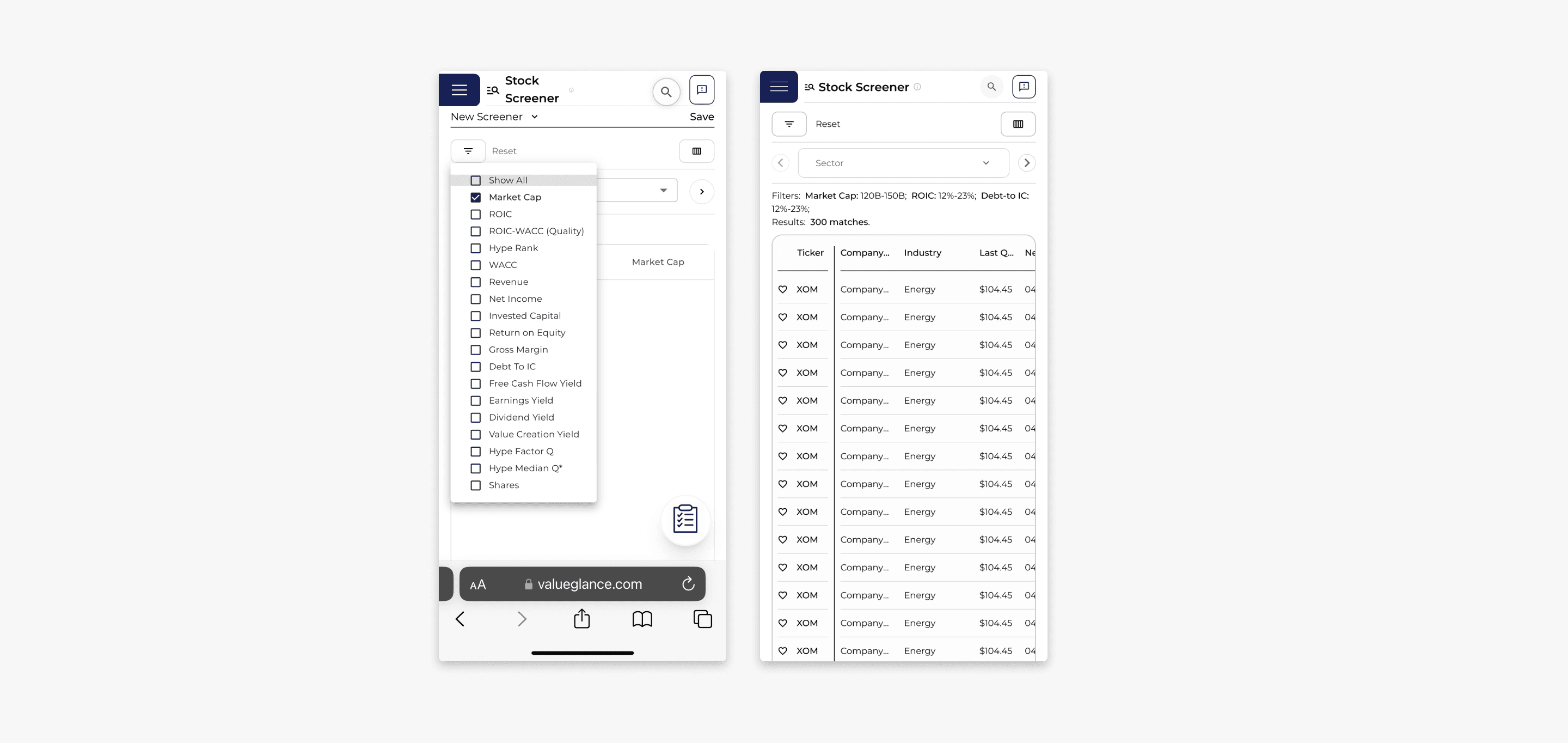
Mobile usability concerns
Touch target size is too small for tap accuracy.
E.g. The target size for applying each filter (16px*16px) is far below recommended target size on mobile screen (40*40 ~ 44*44 px)

Navigating between filters requires repetitive taps.
Users need to tap on the left and the right arrow to navigate between filters to edit ranges.


Poor scannability and limited customization in screener table
Users feel hard to scan information, making it hard to select stocks efficiently.
I don't see anything on this page that would help me be like I should pay attention to this stock.
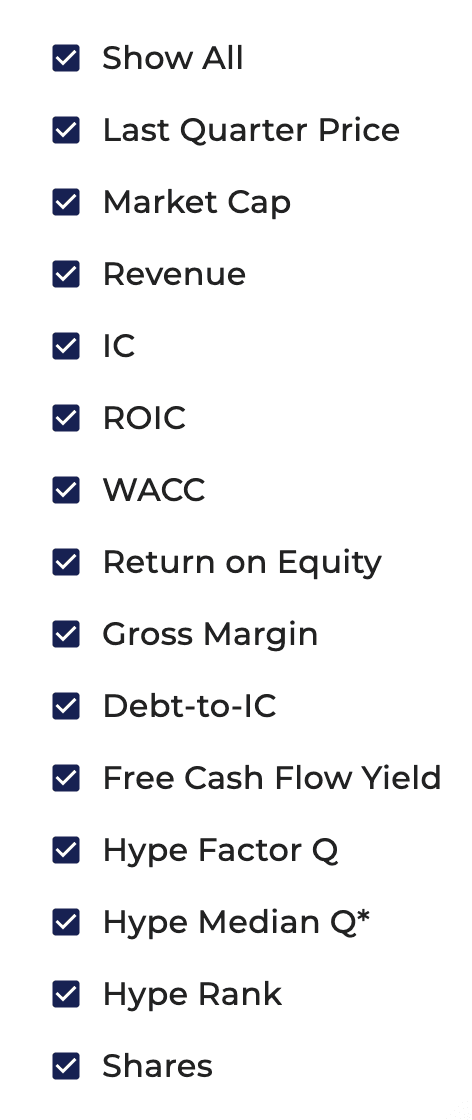
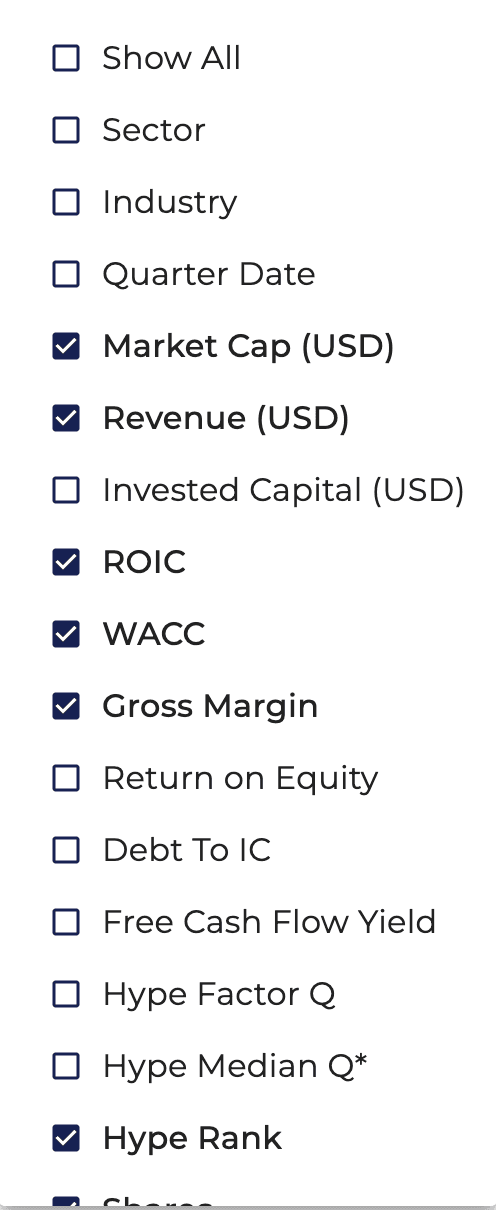
Users find it difficult to flexibly adjust the columns as they want.
I have to uncheck these (metrics) between to make these two (metrics) stay together.
From User Insights to Design Iterations
01
How might we guide users in understanding how each metric impacts their screening results?
Users struggle to select the right screener metrics because they don’t understand how each one relates to their investment goals.
DESIGN SOLUTION
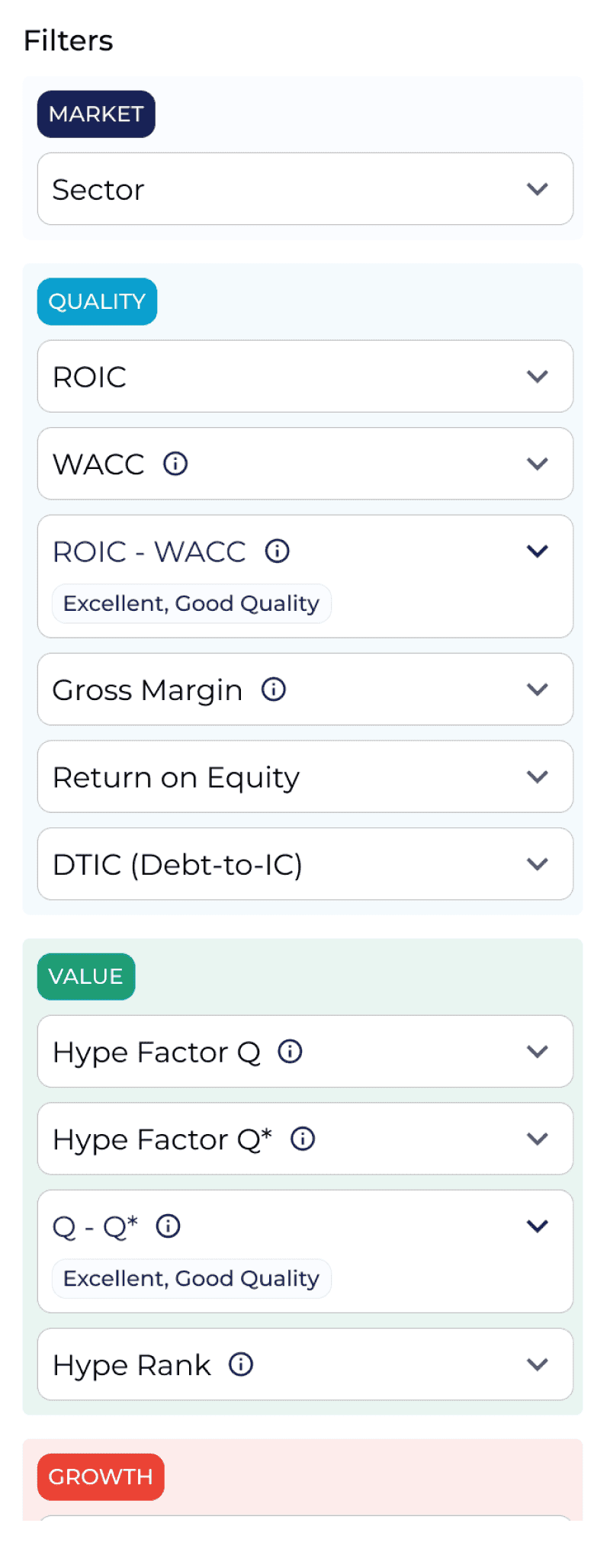
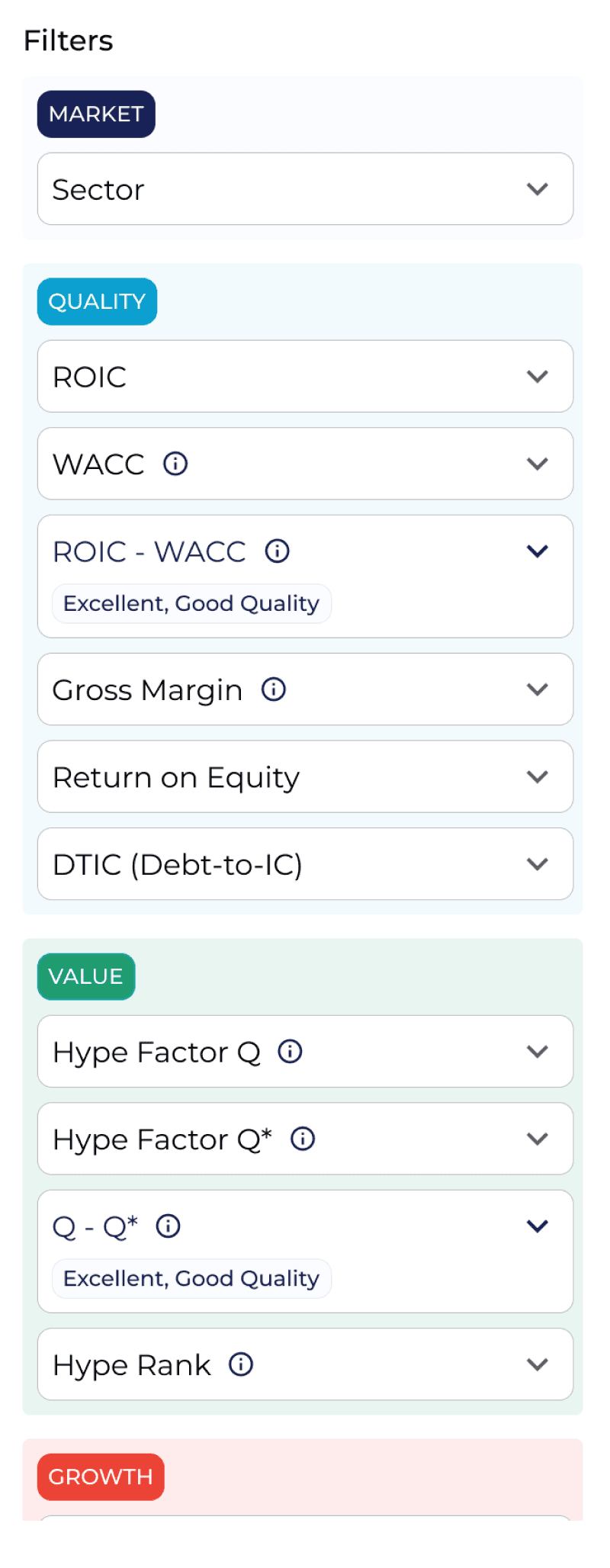
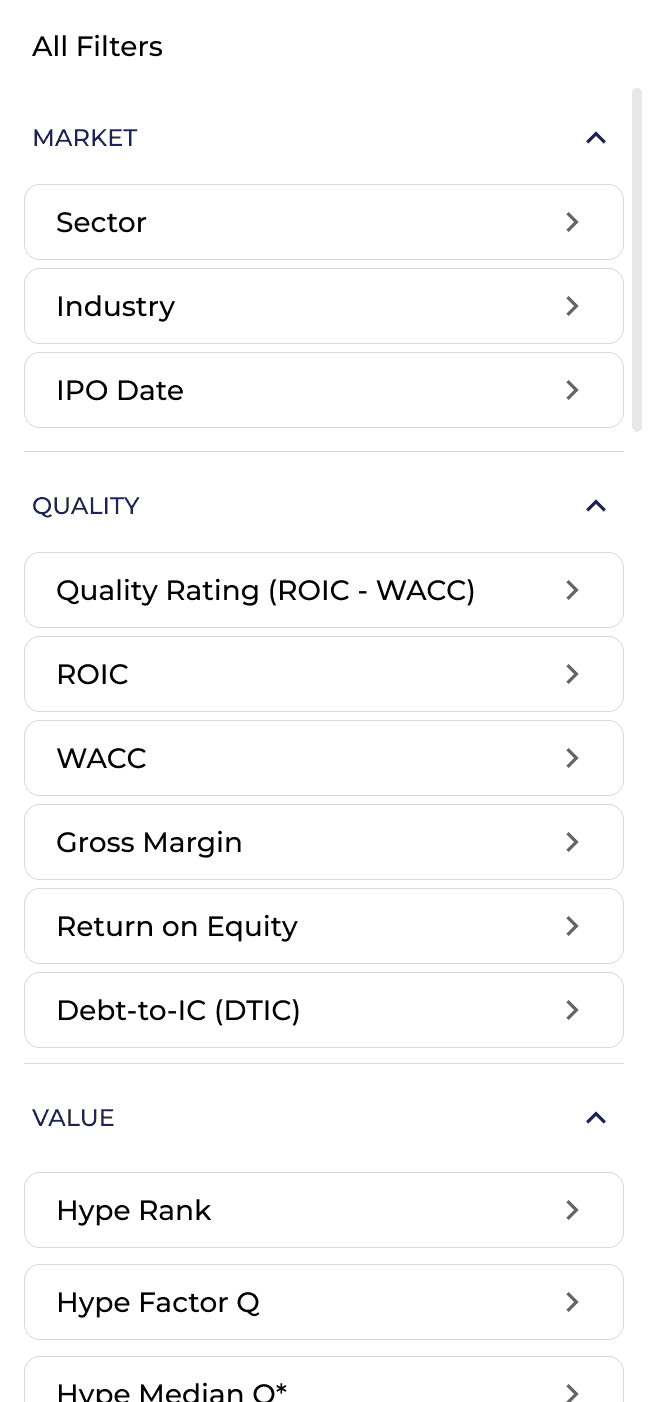
Categorize Metrics by Investment Insights
Before

V1

V2

V3 (Release Version)

V1 - V2
Avoided red & green to reduce misleading signals
Using green and red in investment applications can create unintended positive or negative perceptions for users. Therefore, for V3, decided to use theme colors.
V2 - V3
Enhance UI for clearer category grouping
Applied background color to grouping titles to visually reinforce category distinctions.
02
Managing filters requires multiple clicks, creating unnecessary friction.
How might we streamline the filter-management flow to reduce unnecessary clicks and friction?
01
Users struggle to select the right screener metrics because they don’t understand how each one relates to their investment goals.
How might we guide users in understanding how each metric impacts their screening results?
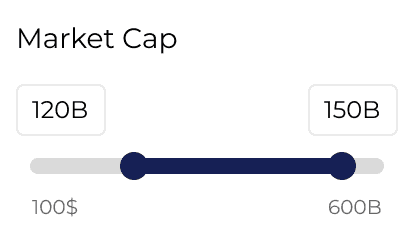
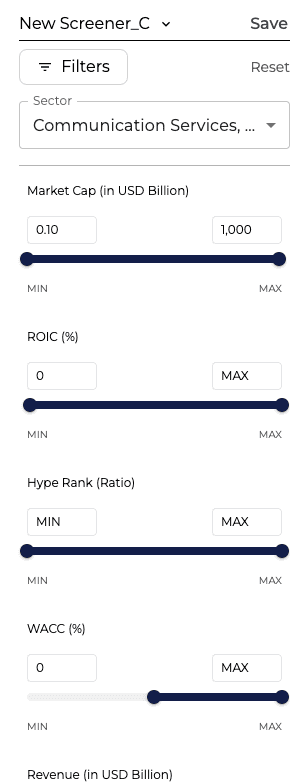
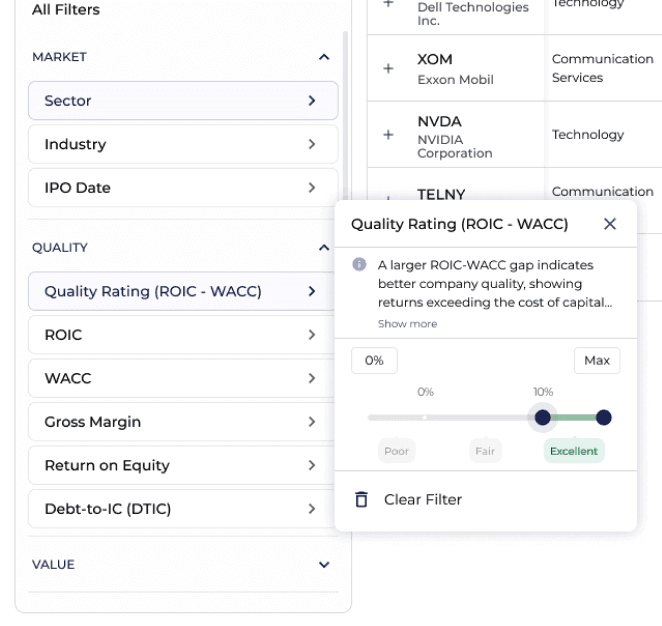
Integrated Investment Insights within Slider to Enhance Intuitiveness
V3 - Release Version

Before

Users feel hard to set up the range since they don't understand what meaning behind the numbers.
V1


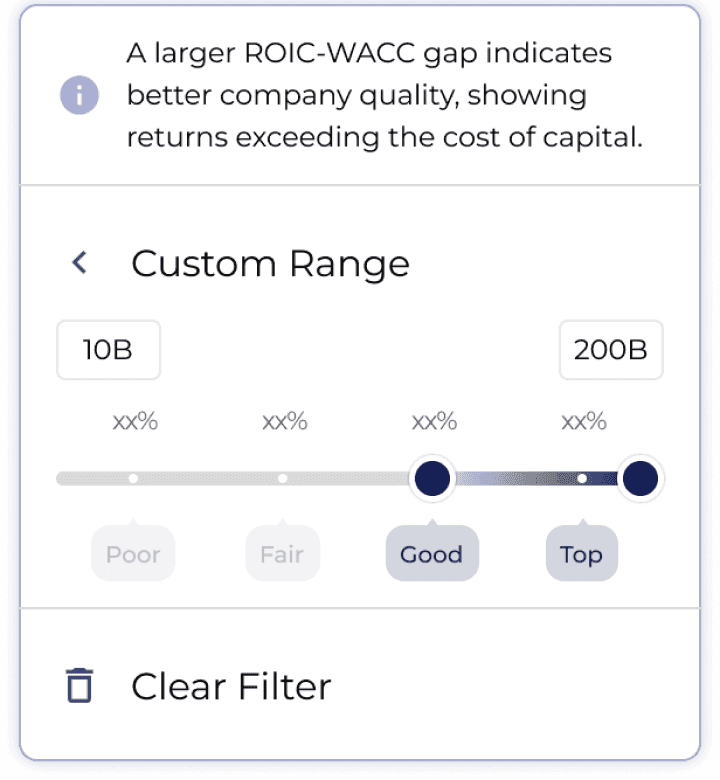
Add labels to ranges to convey meaning behind the numbers
Multiple options for quick selection
V2


Use color coding to convey positive and negative investment meanings, such as green for Excellent Quality, yellow for Fair Quality, and red for Poor Quality, helping users intuitively setting up filter range.
Collaborated with Analysts to Apply to Real Ranges and Labels
Balance between UX and Development Cost
After discussion with engineers, we decided to pause developing the multiple-option feature, leaving slider for this release to speed up development process.
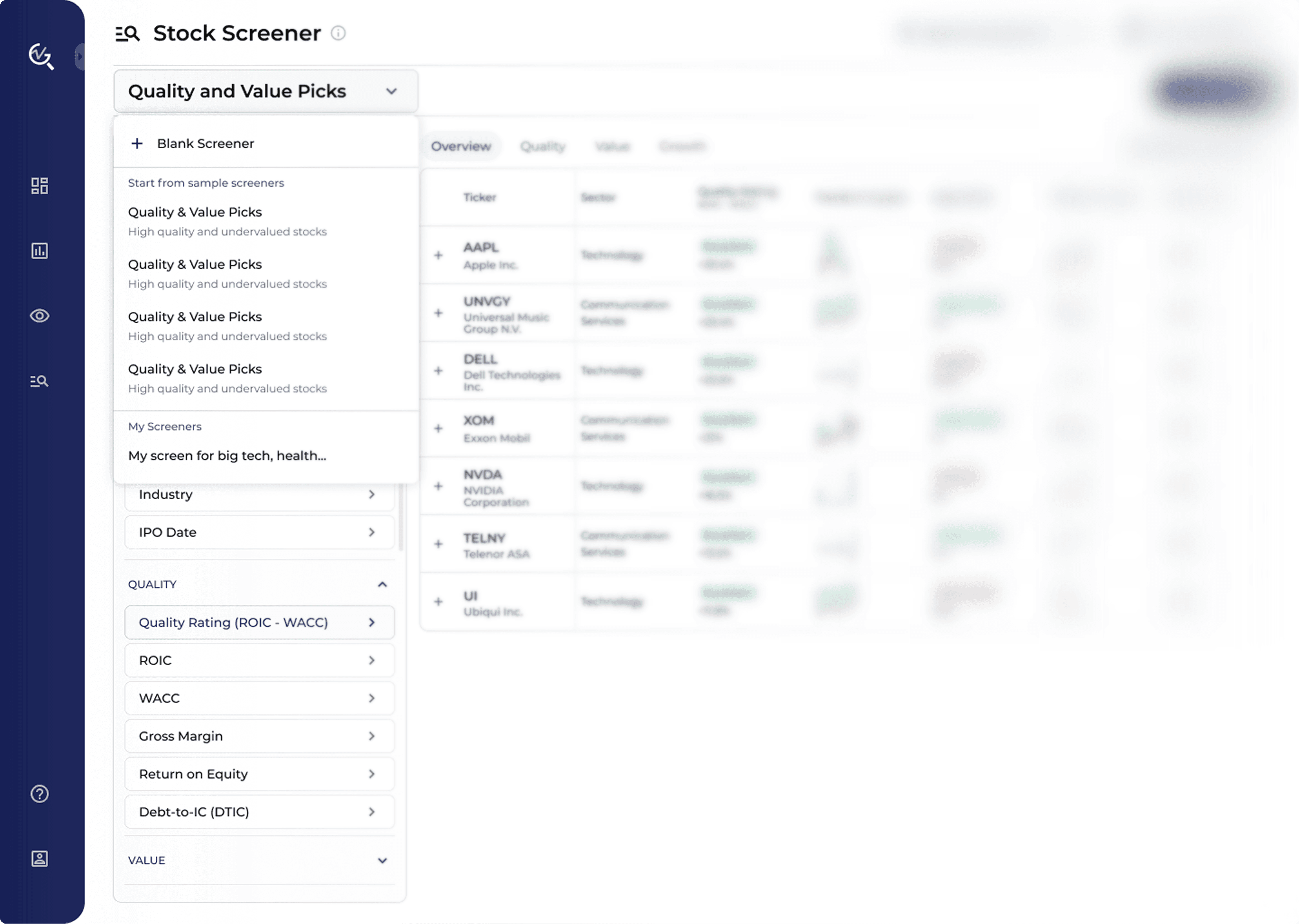
Introduce Preset Screeners to Ease Filter Setting Process for Beginner Investors
V1

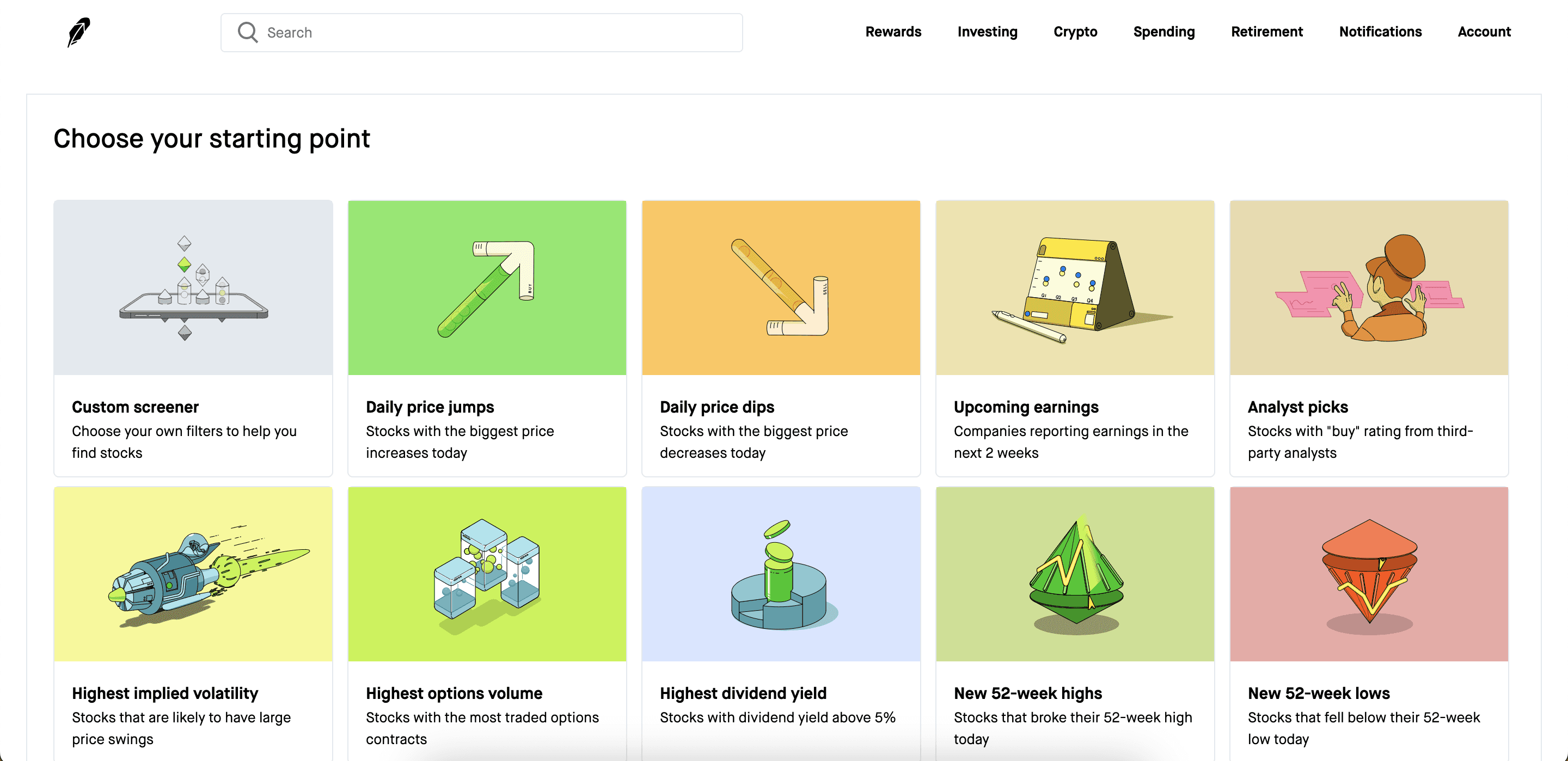
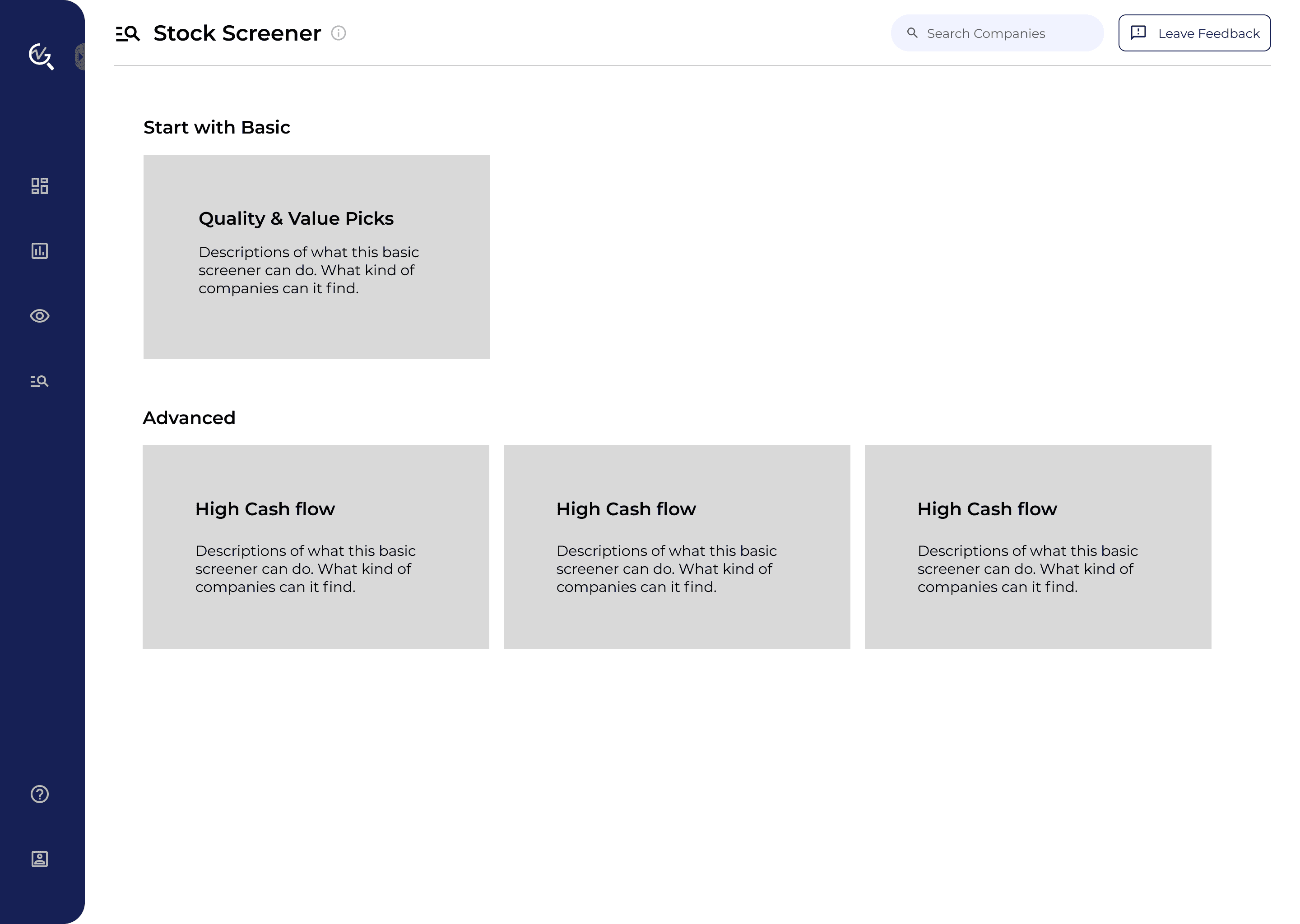
Access preset screeners through a start page
Page tab design to switch between screeners
V2

Considering that users may not need to open a lot of screener pages at the same time, we decided to get rid of the switch-page feature to lower development complexity.
V3

Simplify the page by combining two sections, and use different style to differentiate ‘Start with Blank’ and Preset Screeners.
V3 - Release Version

Due to limited development resources, we decided to exclude the ‘Start Screen’ from the release version, by using a dropdown instead of building an additional page for now. I archived the start screen design once more screeners are developed in the future.
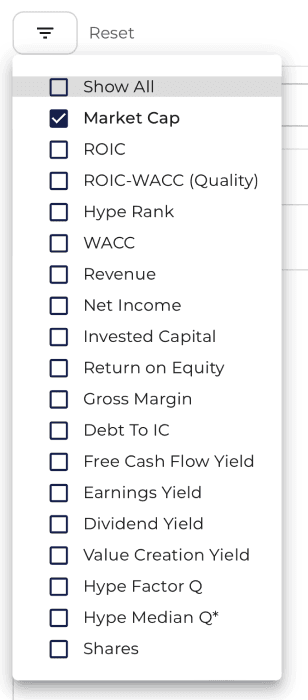
Redesign User Interactions with Filters
V3 - Release Version

V1 - Edit Mode


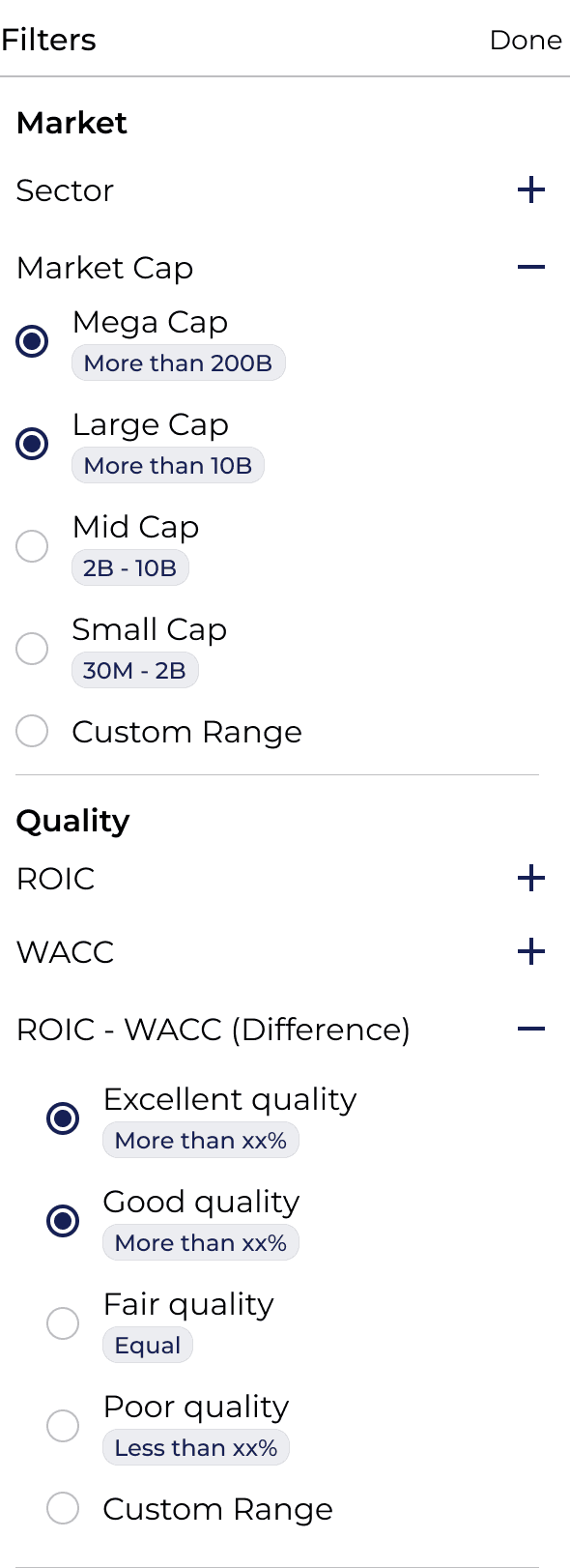
Initially I think of this way to avoid hiding filters and keep the whole filter-edit process in one place. However, mode switching may confuse users about whether editing is available. Also, clicking on “Edit” and “Done” still adds extra steps.
V2 - Expand & Collapse


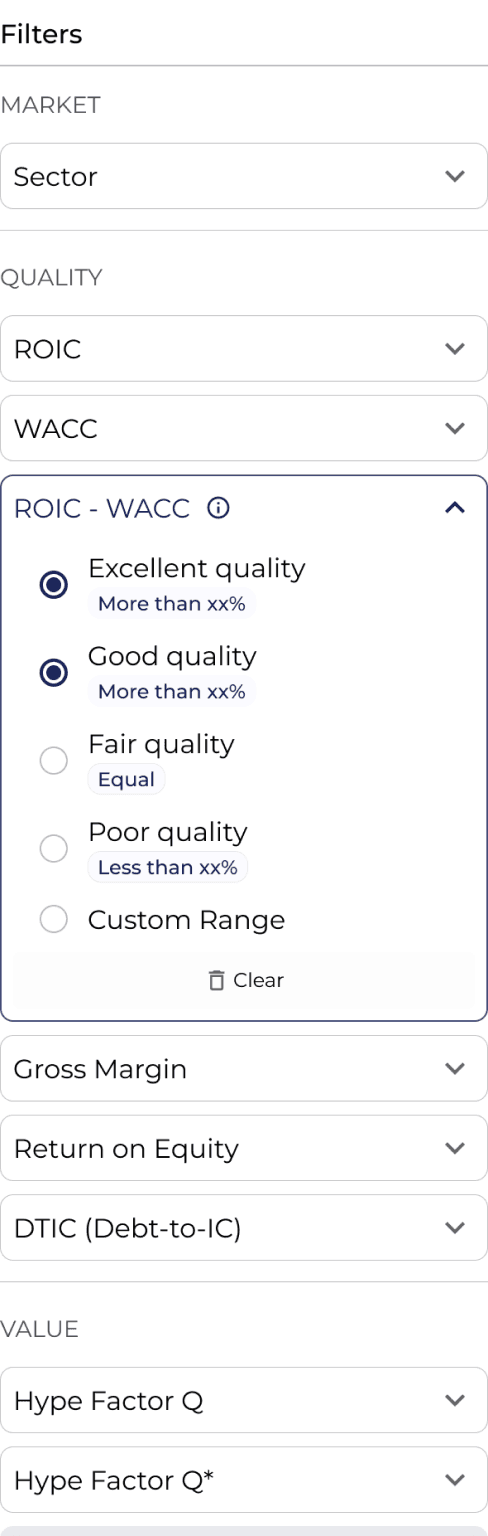
V3 - Dropdown


Use dropdown to remove extra steps and enable direct filter editing. Considering the length of the list and to avoid visual clutter with other filters, I decided to use a side dropdown for the release version.
Before
Every time users want to add/remove filters, they need to click ‘Filter’ button.
After adding filter, users need to find it in the list and adjust the range.

03
Users struggle to identify relevant information in the table, making it difficult to evaluate and select stocks effectively.
How might we present table information more clearly to help users evaluate and select stocks effectively?
04
Users need their customized screener settings to be saved and persist after refreshing, switching pages, or logging out.
How might we design a more intuitive and flexible way to customize table operations?
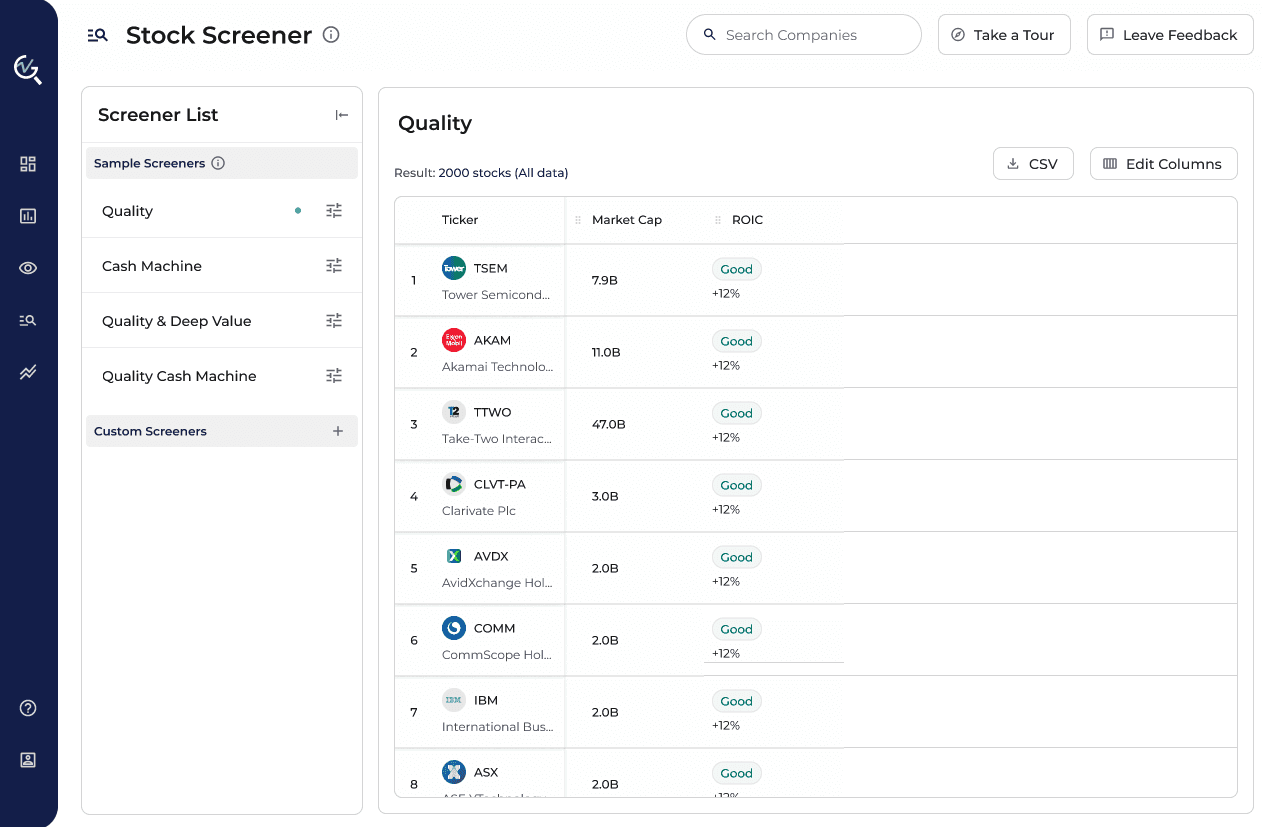
Leverage Colored Labels and Chart Preview to Quickly Spot Stock Insights
Release Version

Before
From usability testing, we found that many users felt hard to use this table to identify helpful information, but quickly moved to the Data Visualization page.

Users mentioned that it’s important to evaluate company quality with trends, not just the latest data.
I decided to add a chart preview to add more value to the table. During iterative process, I made different design options for discussions with developers, confirming the feasibility. (consider data loading time)
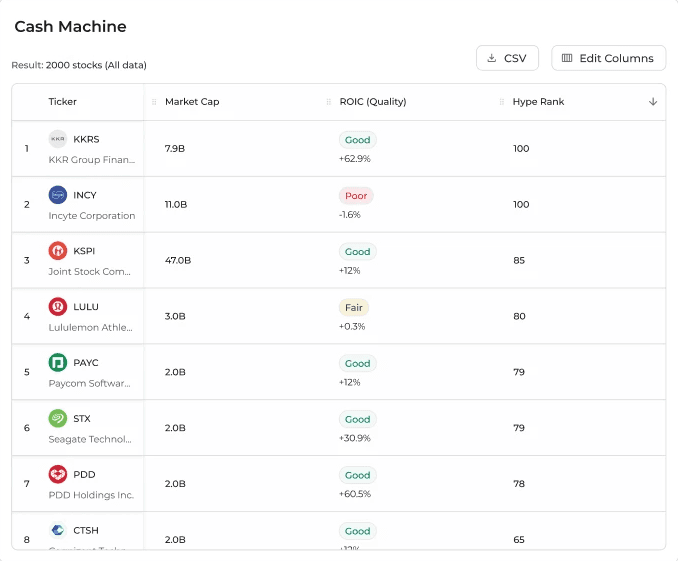
Leverage Colored Labels to Convey Investment Insights
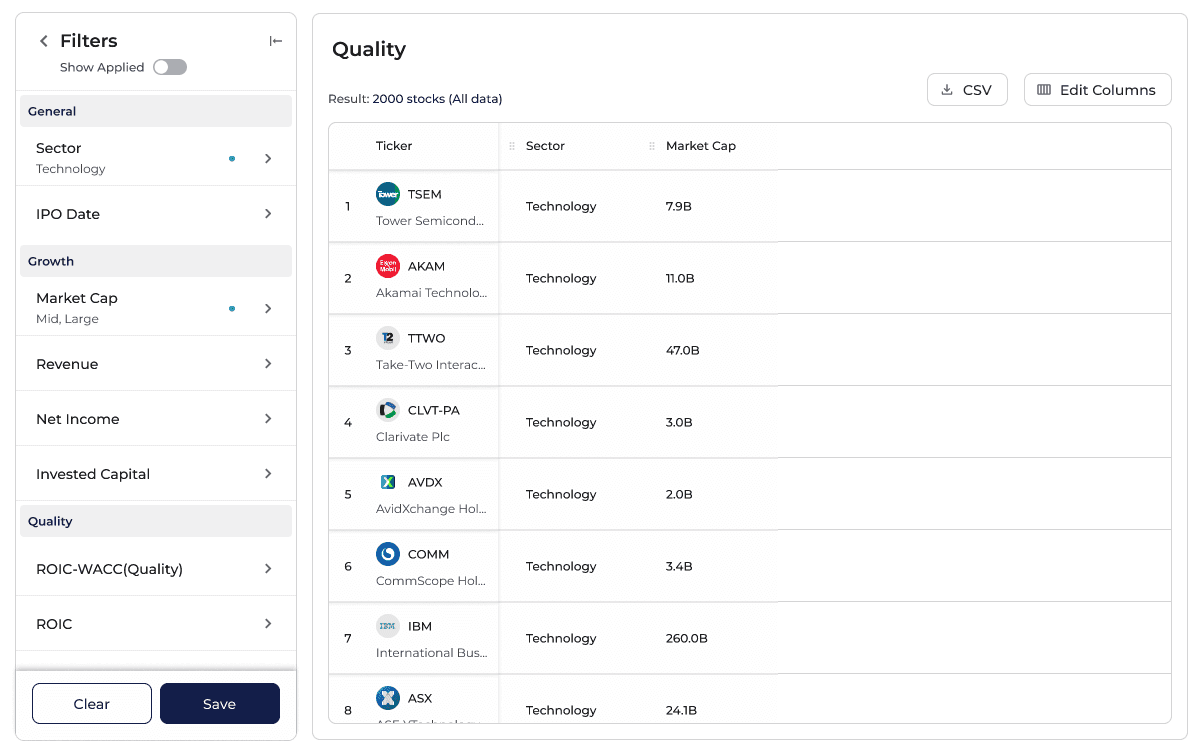
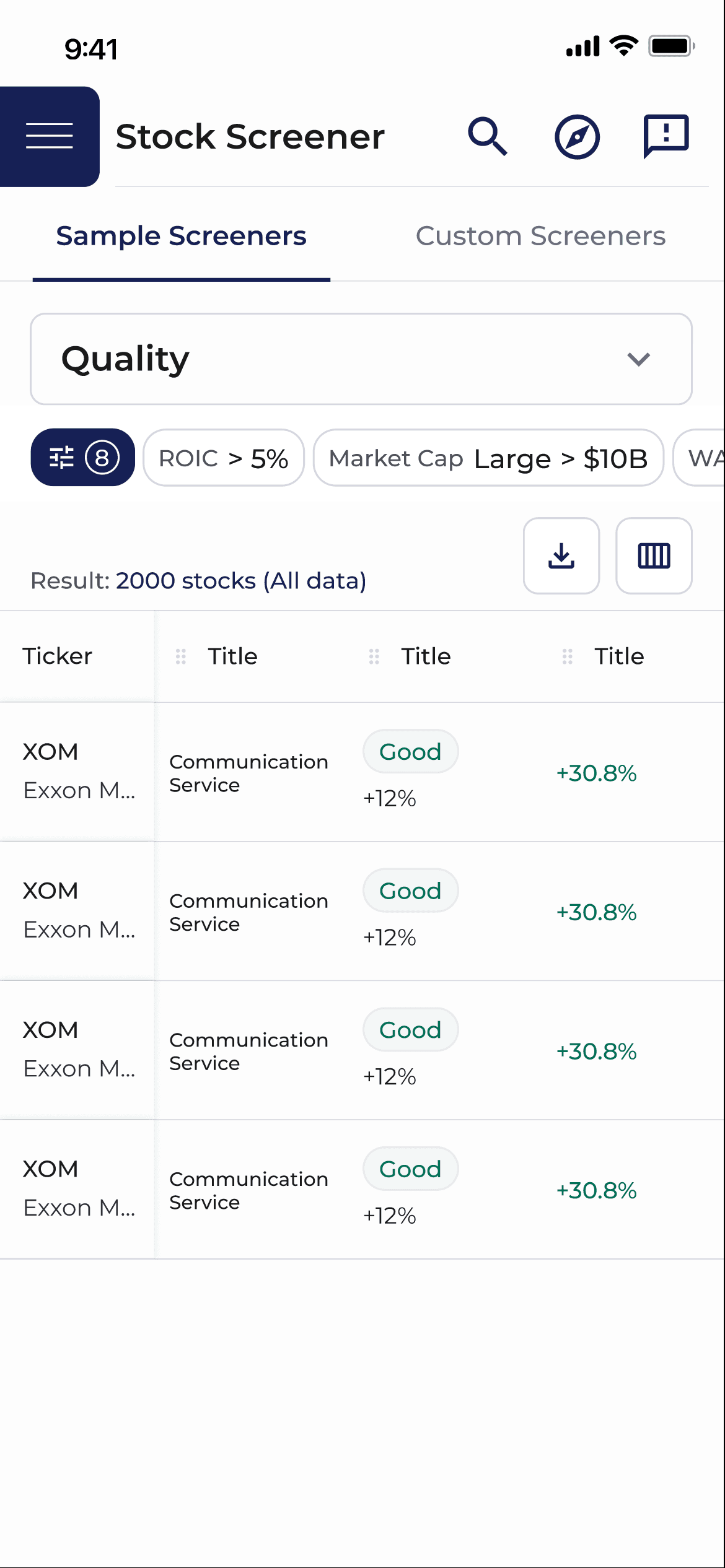
Use color-coded labels, allowing beginner investors to quickly grasp stock performance insights behind the numbers.
Map out Scenarios for Autosaving User Progress


DESIGN SOLUTION
Integrated Investment Insights within Slider to Enhance Intuitiveness
Before

V1


Added investment-context labels to ranges and quick-select options
V2


Visualized investment insights through color coding
Use color coding to convey positive and negative investment meanings, such as green for Excellent Quality, yellow for Fair Quality, and red for Poor Quality, helping users intuitively setting up filter range.
V3 (Release Version)
Finalized value ranges for all metrics
To lower development cost, we decided to push back the multiple-option feature since the slider label already fulfilled user needs.
Micro-interactions
Used low opacity for inactive values and full opacity for included values to provide clear visual feedback.
From User Insights to Design Iterations
02
How might we reduce unnecessary clicks for filter-editing for desktop and mobile screens?
Managing filters is click-heavy, and users need to find it in the list to adjust the value, interrupting the experience.
Specifically on the mobile screen, the touch points are too small that could cause tapping mistakes.
DESIGN SOLUTION
Redesign User Interactions with Filters
Before

Every time users want to add/remove filters, they need to click ‘Filter’ button.
After adding filter, users need to find it in the list and adjust the range.
V1 - V2
Mode switching may cause confusion
Initially I think of this way to avoid hiding filters and keep the whole filter-edit process in one place. However, mode switching may confuse users about whether editing is available. Also, clicking on “Edit” and “Done” still adds extra steps.
V1
Edit Mode


V2,3
Expand & Collapse


Dropdown


Keep the filter list always visible
My goal is to keep the filter list always visible, eliminating the need for extra clicks.
Moreover, since filtering is the primary task in Screener, keeping filters in view encourage users to focus on the main task.
V3 (Release Version)

V3 - Final
Desktop - Side dropdown design to reduce extra steps and avoid visual clutter
Use dropdown to remove extra steps and enable direct filter editing. Considering the length of the list and to avoid vertical visual clutter with other filters, I decided to use a side dropdown.
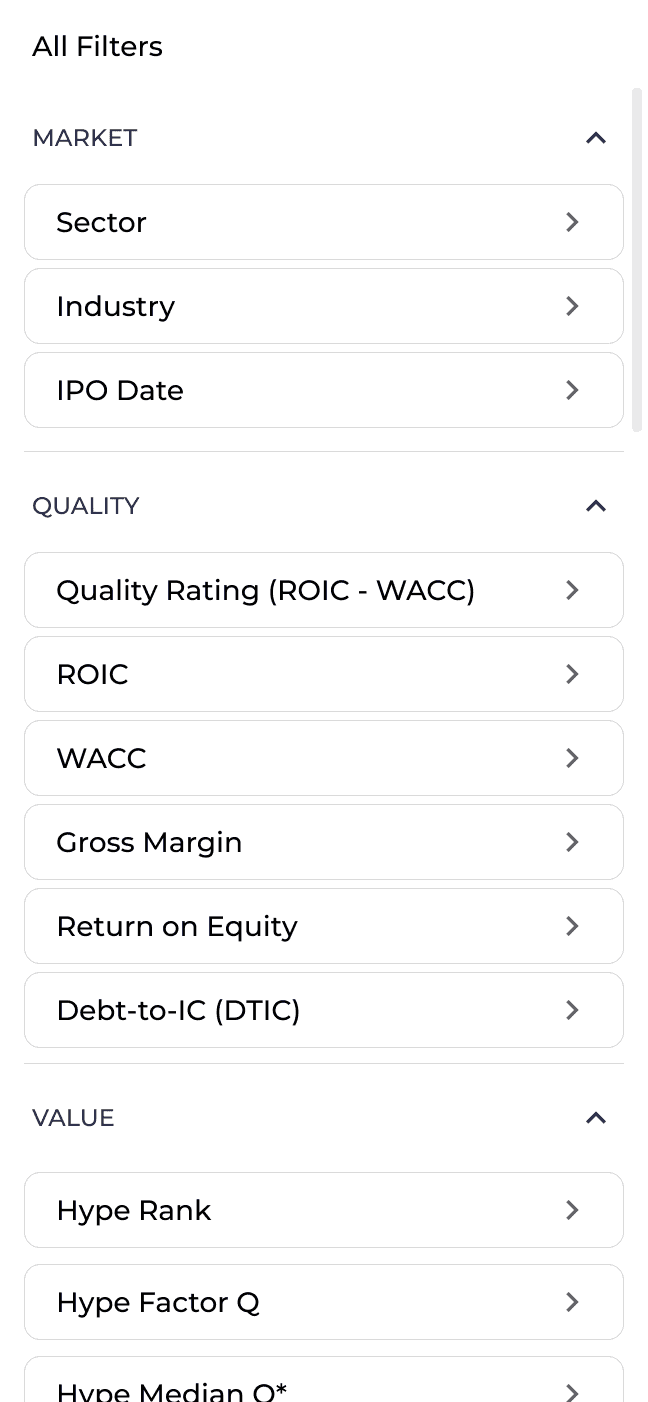
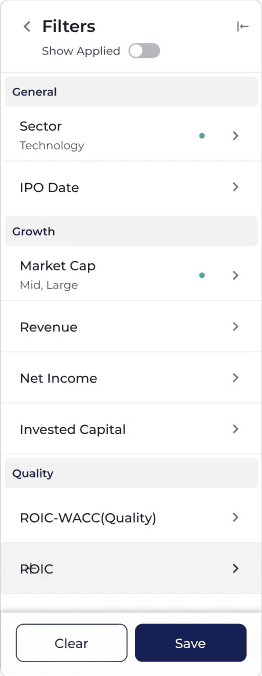
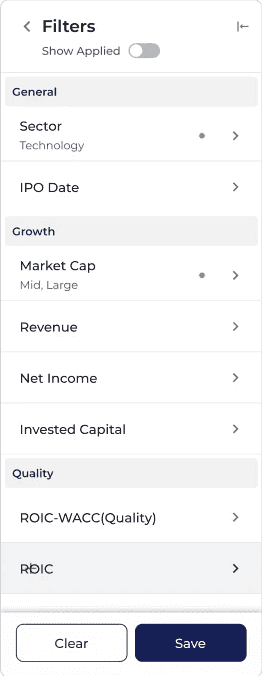
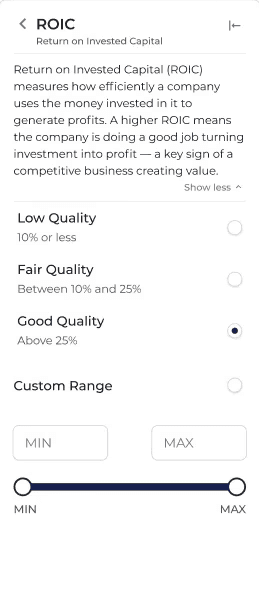
Mobile - Adjust filters within a modal
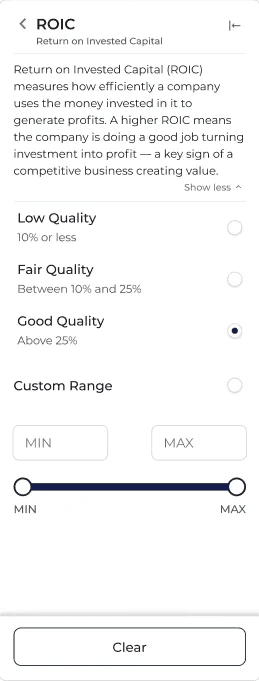
Users click on a button to adjust filters within a modal. Instead of switching left and right to adjust filter ranges, users can simply scroll to access different filters, removing additional clicks.
03
How might we present table more clearly to help users evaluate and select stocks effectively?
Users struggle to identify relevant information in the table, making it difficult to evaluate and select stocks effectively.
DESIGN SOLUTION
Leverage Colored Labels and Chart Preview to Quickly Spot Stock Insights
Before

From usability testing, we found that many users felt hard to identify helpful information, but quickly moved to the Data Visualization page.
Release Version
Leverage colored labels to convey investment insights
Use color-coded labels, allowing beginner investors to quickly grasp stock performance insights behind the numbers.
Building New Components with Existing Design Tokens
I built new components by first expanding the existing design tokens, then creating atom-level and molecule-level components, and finally assembling them into organism-level components.
ATOMS
MOLECULES
ORGANISM
TOKENS
Poor
Fair
Excellent
Labels
Slider
Slider control
Hovering
TOKENS
Existing tokens from design system
Red 500
Red 300
Red 100
Green 500
Green 300
Green 100
Yellow 500
Yellow 300
Yellow 100
Slider style
Colors
Defined new design tokens based on the existing palette for new components.
ATOMS


MOLECULES

ORGANISM


Existing tokens from design system
Red 500
Red 300
Red 100
Green 500
Green 300
Green 100
Yellow 500
Yellow 300
Yellow 100
Slider style
Colors
Defined new design tokens based on the existing palette for new components.
My Learning
Reflections on User Research
Advantages of Internal Usability Testing
Gather diverse cross-functional perspectives from on research protocol (e.g. financial analysts providing insights on task design for better alignment with real scenarios).
Uncover potential follow-up questions for formal interviews.
Identify and resolve minor, easily fixable issues with internal team before external testing.
Create post-interview summaries helps align the team to prioritize high-impact issues.
Balance UX and Development Costs
Involving developers early in redesign planning meetings help prioritize design focus effectively.
Prioritize designs that maximize user experience while maintaining low implementation complexity.
Rapidly Iterate on High-Complexity Designs While Avoiding Rework
Always start with creating lo (mid) -fi designs, and brainstorm multiple possible design options to facilitate team discussion.
Once reaching a consensus on main design direction, gradually refine the details.
My Learning
Reflections on User Research
Advantages of Internal Usability Testing
Gather diverse cross-functional perspectives from on research protocol (e.g. financial analysts providing insights on task design for better alignment with real scenarios).
Uncover potential follow-up questions for formal interviews.
Identify and resolve minor, easily fixable issues with internal team before external testing.
Create post-interview summaries helps align the team to prioritize high-impact issues.
Balance UX and Development Costs
Involving developers early in redesign planning meetings help prioritize design focus effectively.
Prioritize designs that maximize user experience while maintaining low implementation complexity.
Rapidly Iterate on High-Complexity Designs While Avoiding Rework
Always start with creating lo (mid) -fi designs, and brainstorm multiple possible design options to facilitate team discussion.
Once reaching a consensus on main design direction, gradually refine the details.

Redesigning the Stock Screener: Crafting an Intuitive Stock Discovery Experience for Emerging Investors
About Project
I redesigned the Screener feature for a FinTech SaaS investment platform, driving the process from usability interviews through design iterations to design handoff.
My Role
Conduct survey & usability interview
Prioritize design decisions using Impact-Feasibility Matrix
Deliver wireframes & high-fidelity prototypes
Document screen flows and component libraries
Achievements
Reduced stock discovery steps by 25%.
TEAM
1 CEO / Back-end Developer
1 Front-end Developer
1 Financial Analyst
1 Product Designer (Me)
COMPANY
ValueGlance
DURATION
2 months
TOOLS
Figma, FigJam (Whiteboard tool)
Research Recap
Screener has strong potential to meet users' investing needs, but its usability challenges are preventing users from fully benefiting from it.
From survey and usability testing results, we found a huge opportunity to improve the Screener by reducing cognitive load and clarifying key interactions, aiming to unlock the full value of the feature.
Check out full research case study
90%
of users said 'Find potential stocks to invest in.' is the main goal of using an investing tool, showing that Screener could be a valuable feature.
3out of 6
active users feel lost when choosing and setting up filters during the free exploration Screener task.
57.2%
of users feel difficult to use the Screener feature.
Over 50%
of users use the Screener feature infrequently.
Usability Study Insights
During usability testing, we discovered that while screening stocks, users struggled to choose the right filters, set meaningful ranges, and understand how each metric aligned with their investment goals. Once they received the results, many found it difficult to evaluate and compare stocks effectively.


Lack of mental models for investment metrics
Users struggle to select the right screener metrics because they don’t understand how each one relates to their investment goals.
I don't know what the relation of a company and their revenue and market cap really have to do with whether they are

Users don't know what number to set up for the ranges.
I really don't know what the average market caps are, what is considered a small company. I don't know what the range for that is.


Interaction friction in filter controls
Managing filters requires multiple clicks, creating unnecessary friction.
I don't know what the relation of a company and their revenue and market cap really have to do with whether they are

Applied filters are shown as plain text, making users difficult to scan and understand.

I really don't know what the average market caps are, what is considered a small company. I don't know what the range for that is.


Mobile usability concerns
Touch target size is too small for tap accuracy.
E.g. The target size for applying each filter (16px*16px) is far below recommended target size on mobile screen (40*40 ~ 44*44 px)

Navigating between filters requires repetitive taps.
Users need to tap on the left and the right arrow to navigate between filters to edit ranges.

Poor scannability and limited customization in screener table
Users feel hard to scan information, making it hard to select stocks efficiently.
I don't see anything on this page that would help me be like I should pay attention to this stock.
Users find it difficult to flexibly adjust the columns as they want.
I have to uncheck these (metrics) between to make these two (metrics) stay together.
From User Insights to Design Iterations
01
How might we guide users in understanding how each metric impacts their screening results?
Users struggle to select the right screener metrics because they don’t understand how each one relates to their investment goals.
DESIGN SOLUTION
Categorize Metrics by Investment Insights
Before

V1

V2

V3 (Release Version)

V1 - V2
Avoided red & green to reduce misleading signals
Using green and red in investment applications can create unintended positive or negative perceptions for users. Therefore, for V3, decided to use theme colors.
V2 - V3
Enhance UI for clearer category grouping
Applied background color to grouping titles to visually reinforce category distinctions.
02
Managing filters requires multiple clicks, creating unnecessary friction.
How might we streamline the filter-management flow to reduce unnecessary clicks and friction?
01
Users struggle to select the right screener metrics because they don’t understand how each one relates to their investment goals.
How might we guide users in understanding how each metric impacts their screening results?
Integrated Investment Insights within Slider to Enhance Intuitiveness
V3 - Release Version

Before

Users feel hard to set up the range since they don't understand what meaning behind the numbers.
V1


Add labels to ranges to convey meaning behind the numbers
Multiple options for quick selection
V2


Use color coding to convey positive and negative investment meanings, such as green for Excellent Quality, yellow for Fair Quality, and red for Poor Quality, helping users intuitively setting up filter range.
Collaborated with Analysts to Apply to Real Ranges and Labels
Balance between UX and Development Cost
After discussion with engineers, we decided to pause developing the multiple-option feature, leaving slider for this release to speed up development process.
Introduce Preset Screeners to Ease Filter Setting Process for Beginner Investors
V1

Access preset screeners through a start page
Page tab design to switch between screeners
V2

Considering that users may not need to open a lot of screener pages at the same time, we decided to get rid of the switch-page feature to lower development complexity.
V3

Simplify the page by combining two sections, and use different style to differentiate ‘Start with Blank’ and Preset Screeners.
V3 - Release Version

Due to limited development resources, we decided to exclude the ‘Start Screen’ from the release version, by using a dropdown instead of building an additional page for now. I archived the start screen design once more screeners are developed in the future.
Redesign User Interactions with Filters
V3 - Release Version

V1 - Edit Mode


Initially I think of this way to avoid hiding filters and keep the whole filter-edit process in one place. However, mode switching may confuse users about whether editing is available. Also, clicking on “Edit” and “Done” still adds extra steps.
V2 - Expand & Collapse


V3 - Dropdown


Use dropdown to remove extra steps and enable direct filter editing. Considering the length of the list and to avoid visual clutter with other filters, I decided to use a side dropdown for the release version.
Before
Every time users want to add/remove filters, they need to click ‘Filter’ button.
After adding filter, users need to find it in the list and adjust the range.

03
Users struggle to identify relevant information in the table, making it difficult to evaluate and select stocks effectively.
How might we present table information more clearly to help users evaluate and select stocks effectively?
04
Users need their customized screener settings to be saved and persist after refreshing, switching pages, or logging out.
How might we design a more intuitive and flexible way to customize table operations?
Leverage Colored Labels and Chart Preview to Quickly Spot Stock Insights
Release Version

Before
From usability testing, we found that many users felt hard to use this table to identify helpful information, but quickly moved to the Data Visualization page.

Users mentioned that it’s important to evaluate company quality with trends, not just the latest data.
I decided to add a chart preview to add more value to the table. During iterative process, I made different design options for discussions with developers, confirming the feasibility. (consider data loading time)
Leverage Colored Labels to Convey Investment Insights
Use color-coded labels, allowing beginner investors to quickly grasp stock performance insights behind the numbers.
Map out Scenarios for Autosaving User Progress


DESIGN SOLUTION
Integrated Investment Insights within Slider to Enhance Intuitiveness
Before

V1


Added investment-context labels to ranges and quick-select options
V2


Visualized investment insights through color coding
Use color coding to convey positive and negative investment meanings, such as green for Excellent Quality, yellow for Fair Quality, and red for Poor Quality, helping users intuitively setting up filter range.
V3 (Release Version)
Finalized value ranges for all metrics
To lower development cost, we decided to push back the multiple-option feature since the slider label already fulfilled user needs.
Micro-interactions
Used low opacity for inactive values and full opacity for included values to provide clear visual feedback.
From User Insights to Design Iterations
02
How might we reduce unnecessary clicks for filter-editing for desktop and mobile screens?
Managing filters is click-heavy, and users need to find it in the list to adjust the value, interrupting the experience.
Specifically on the mobile screen, the touch points are too small that could cause tapping mistakes.
DESIGN SOLUTION
Redesign User Interactions with Filters
Before

Every time users want to add/remove filters, they need to click ‘Filter’ button.
After adding filter, users need to find it in the list and adjust the range.
V1 - V2
Mode switching may cause confusion
Initially I think of this way to avoid hiding filters and keep the whole filter-edit process in one place. However, mode switching may confuse users about whether editing is available. Also, clicking on “Edit” and “Done” still adds extra steps.
V1
Edit Mode


V2,3
Expand & Collapse


Dropdown


Keep the filter list always visible
My goal is to keep the filter list always visible, eliminating the need for extra clicks.
Moreover, since filtering is the primary task in Screener, keeping filters in view encourage users to focus on the main task.
V3 (Release Version)

V3 - Final
Desktop - Side dropdown design to reduce extra steps and avoid visual clutter
Use dropdown to remove extra steps and enable direct filter editing. Considering the length of the list and to avoid vertical visual clutter with other filters, I decided to use a side dropdown.
Mobile - Adjust filters within a modal
Users click on a button to adjust filters within a modal. Instead of switching left and right to adjust filter ranges, users can simply scroll to access different filters, removing additional clicks.
03
How might we present table more clearly to help users evaluate and select stocks effectively?
Users struggle to identify relevant information in the table, making it difficult to evaluate and select stocks effectively.
DESIGN SOLUTION
Leverage Colored Labels and Chart Preview to Quickly Spot Stock Insights
Before

From usability testing, we found that many users felt hard to identify helpful information, but quickly moved to the Data Visualization page.
Release Version
Leverage colored labels to convey investment insights
Use color-coded labels, allowing beginner investors to quickly grasp stock performance insights behind the numbers.
Building New Components with Existing Design Tokens
I built new components by first expanding the existing design tokens, then creating atom-level and molecule-level components, and finally assembling them into organism-level components.
ATOMS
MOLECULES
ORGANISM
TOKENS
Poor
Fair
Excellent
Labels
Slider
Slider control
Hovering
TOKENS
Existing tokens from design system
Red 500
Red 300
Red 100
Green 500
Green 300
Green 100
Yellow 500
Yellow 300
Yellow 100
Slider style
Colors
Defined new design tokens based on the existing palette for new components.
ATOMS


MOLECULES

ORGANISM


Existing tokens from design system
Red 500
Red 300
Red 100
Green 500
Green 300
Green 100
Yellow 500
Yellow 300
Yellow 100
Slider style
Colors
Defined new design tokens based on the existing palette for new components.
My Learning
Reflections on User Research
Advantages of Internal Usability Testing
Gather diverse cross-functional perspectives from on research protocol (e.g. financial analysts providing insights on task design for better alignment with real scenarios).
Uncover potential follow-up questions for formal interviews.
Identify and resolve minor, easily fixable issues with internal team before external testing.
Create post-interview summaries helps align the team to prioritize high-impact issues.
Balance UX and Development Costs
Involving developers early in redesign planning meetings help prioritize design focus effectively.
Prioritize designs that maximize user experience while maintaining low implementation complexity.
Rapidly Iterate on High-Complexity Designs While Avoiding Rework
Always start with creating lo (mid) -fi designs, and brainstorm multiple possible design options to facilitate team discussion.
Once reaching a consensus on main design direction, gradually refine the details.
My Learning
Reflections on User Research
Advantages of Internal Usability Testing
Gather diverse cross-functional perspectives from on research protocol (e.g. financial analysts providing insights on task design for better alignment with real scenarios).
Uncover potential follow-up questions for formal interviews.
Identify and resolve minor, easily fixable issues with internal team before external testing.
Create post-interview summaries helps align the team to prioritize high-impact issues.
Balance UX and Development Costs
Involving developers early in redesign planning meetings help prioritize design focus effectively.
Prioritize designs that maximize user experience while maintaining low implementation complexity.
Rapidly Iterate on High-Complexity Designs While Avoiding Rework
Always start with creating lo (mid) -fi designs, and brainstorm multiple possible design options to facilitate team discussion.
Once reaching a consensus on main design direction, gradually refine the details.
Redesigning the Stock Screener: Crafting an Intuitive Stock Discovery Experience for Evolving Investors
I redesigned the Screener feature for a FinTech SaaS investment platform, driving the process from usability interviews through design iterations to design handoff.
My Role
Conduct survey & usability interview
Prioritize design decisions using Impact-Feasibility Matrix
Deliver wireframes & high-fidelity prototypes
Document screen flows and component libraries
Achievements
Reduced stock discovery steps by 25%.
TEAM
1 Product Designer (Me)
1 CEO / Back-end Developer
1 Front-end Developer
1 Financial Analyst
COMPANY
ValueGlance
DURATION
2 months
TOOLS
Figma
Redesigning the Stock Screener: Crafting an Intuitive Stock Discovery Experience for Evolving Investors
I redesigned the Screener feature for a FinTech SaaS investment platform, driving the process from usability interviews through design iterations to design handoff.
My Role
Conduct survey & usability interview
Prioritize design decisions using Impact-Feasibility Matrix
Deliver wireframes & high-fidelity prototypes
Document screen flows and component libraries
Achievements
Reduced stock discovery steps by 25%.
TEAM
1 Product Designer (Me)
1 CEO / Back-end Developer
1 Front-end Developer
1 Financial Analyst
COMPANY
ValueGlance
DURATION
2 months
TOOLS
Figma